
Document-based Dunning
This is the current productive dunning process for most tenants.
A new OPOS Case–based model is in development.
Document-based dunning reminds customers of outstanding receivables with an automated multi-level process. instellix can create and send up to four consecutive dunning documents (for example payment reminder, 1st / 2nd / 3rd warning), using your company templates and intervals.
Where configured for your tenant, invoices can be handed over to a collection agency after unsuccessful reminder steps.
How it works
- Dunning is driven from the invoice / document timeline.
- Level intervals are configured in days. Level 1 timing relates to the invoice due date / creation context; later levels count from the previous level.
- While a Payment Intent is in progress (for example RETRY, IN_PROGRESS, SUBMITTED, PENDING) or payment collection is in progress, dunning is typically blocked.
- After a Payment Intent is CANCELED, dunning can proceed (subject to configuration and due date).
Due date vs. dunning intervals: see Payment Terms.
Configure the dunning process
Go to: Configuration > Billing > Dunning configuration
Do not activate Automated dunning until levels are configured and dunning templates are available in the system.
- Select how many dunning levels you need.
- Define for each level after how many days it should start (from the previous level; level 1 relates to the invoice / due-date context).
- Upload dunning templates via Support.
- Only then set Activate automated dunning to active.
In the UI, the first timing setting may appear as Due date starts ___ days after invoice date, with subsequent dunning levels below. That first value can also act as the due-date fallback when no payment term is set on the order/contract (Payment Terms).
API
- Retrieve dunning configuration —
GET /v2/billing/configuration/dunning - Create / update dunning configuration —
POST /v2/billing/configuration/dunning
Levels in the API: DUNNING_LEVEL_1 … DUNNING_LEVEL_4 with timeUntilChangeToThisStateInSeconds.
View dunning notifications
When a dunning document has been sent, a notification is created.
Go to: Global > Notifications
Open the notification to see dunning details (invoice number, dunning level, trials, and more).
View dunning documents
On the invoice details page:
Billing > Documents > Invoice > Invoice details table > Tab "Attachments"
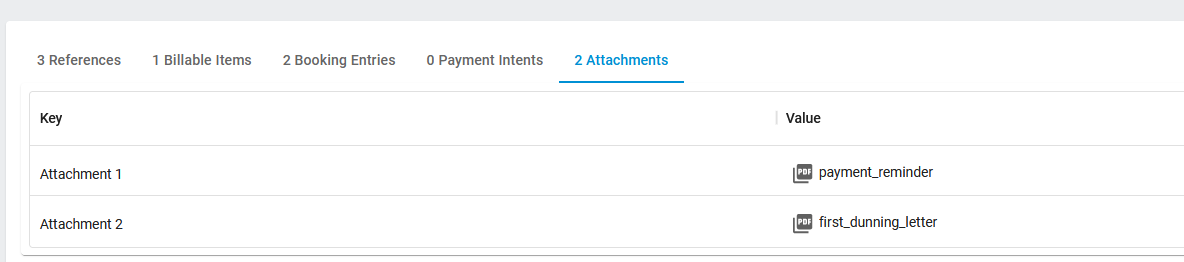
Dunning letters created by the automated process are listed there.
Related articles
- Dunning (overview)
- Payment Terms
- Payment Intents
- OPOS Case Dunning (when published)
Updated 3 months ago