
Tax Provider Avalara
Avalara AvaTax is a cloud-based solution automating transaction tax calculations and the tax filing process. Avalara provides real-time tax calculation using tax content from more than 12,000 US taxing jurisdictions and over 200 countries, insuring your transaction tax is calculated based on the most current tax rules.
Connect to AvaTax
Before you start configuring your setup, ensure that you have the following details ready:
- Avalara Account ID: This 10-number is essential for authenticating API connections with Avalara. You can locate your Account Number at the top right corner of the AvaTax Admin Console upon logging in.
- Avalara License Key: This string is crucial for API authentication with Avalara. If you reset your license key, remember to update it in instellix as well. Refer to the License Key section for guidance on locating or resetting your license key.
- Company Name/Code: This unique number identifies your company within Avalara's systems. To locate your Corporate Identifier, log into the AvaTax Admin Console, navigate to the Settings tab, and choose Company Details.
To setup Avalara as a tax engine, perform the following steps:
- Go to menu Integration -> Tax Providers -> Avalara AvaTax
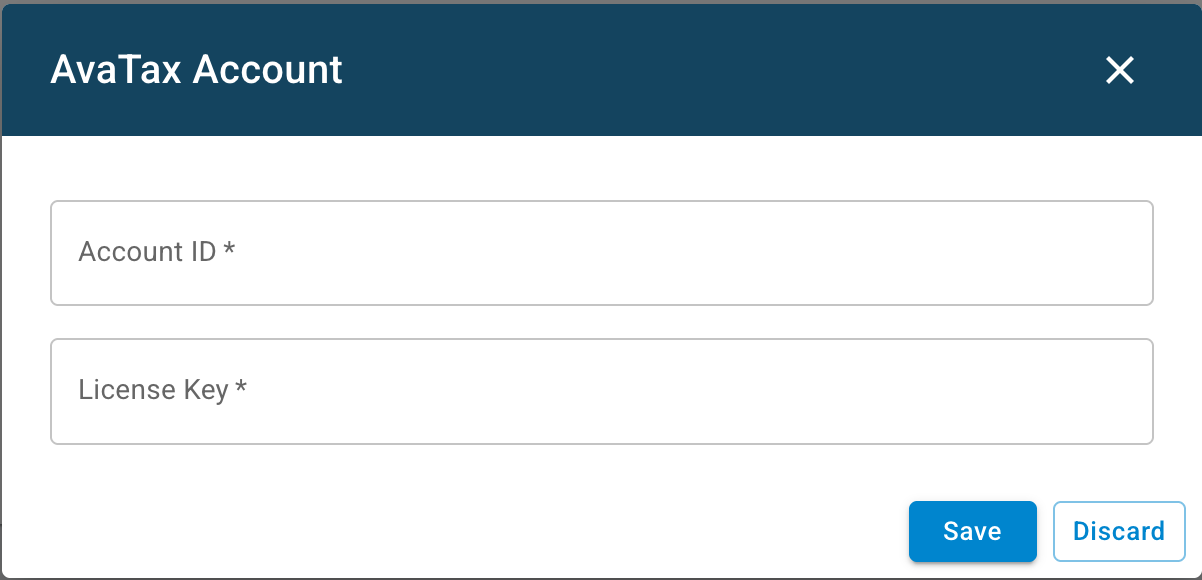
- Enter your Avalara Account ID
- Enter your Avalara License Key
- Click save.
Configure AvaTax
Once connected, you can configure additional settings:
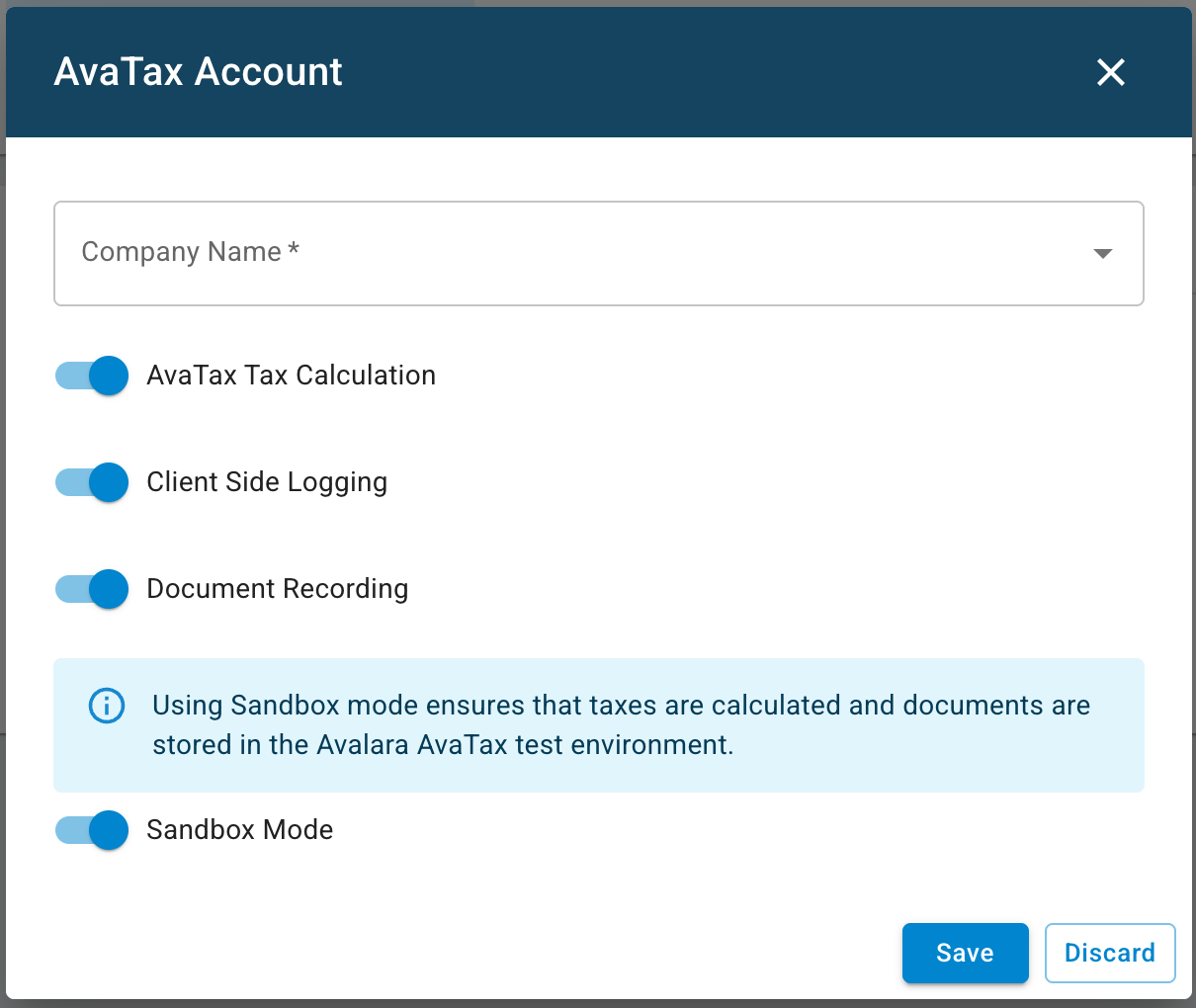
- Company Name: Select the correct company name from the dropdown. (All Company Locations present in the AvaTax Admin Console are automatically displayed. You can find and expand these in the Admin Console under the Settings and Company Locations tab.) If no Company can be selected, your credentials might be invalid. Please check with the Avalara Support for further help
- AvaTax Tax Calculation: Here you can disable or activate the AvaTax calculation service.
- Client Side Logging: Log detailed transaction activity on your side to support troubleshooting, testing, and debugging. This includes request payloads, responses from Avalara, and error details – helpful for technical support.
- Document Recording: Enables tax document submission to Avalara’s AvaTax service for record keeping. With this setting enabled, transactions will be posted and committed to the AvaTax Admin Console.
- Sandbox Mode: Allows to use an isolated test environment where you can safely experiment without impacting live data or the production system.
Client-Side Logging
To support debugging and provide transparency during the integration with Avalara, our system offers client-side logging for all Avalara-related activities.
The logs capture full API communication with Avalara – including requests, responses, error messages, and metadata – to help you troubleshoot locally, validate your setup, and ensure data is exchanged as expected.
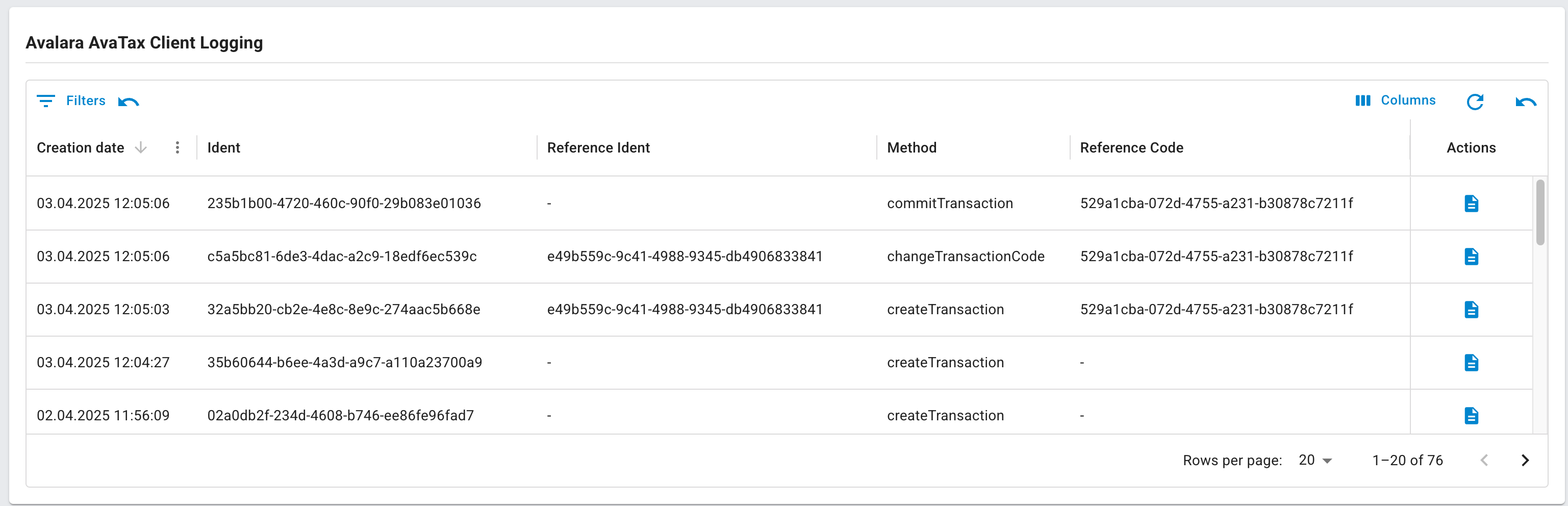
If Client-Side Logging is enabled, you can view the logs directly in the Webportal:
- Go to menu Integration -> Tax Providers -> Avalara AvaTax
- Scroll down to the log table
- Use the instellix Order Ident as the reference code to filter for a specific transaction
- Click the Details button to view the full log entry
These logs show the exact request and response payloads exchanged with Avalara, making it easier to verify data, identify issues, and understand how your setup behaves in real-time.
Assign an AvaTax System Code to a line item
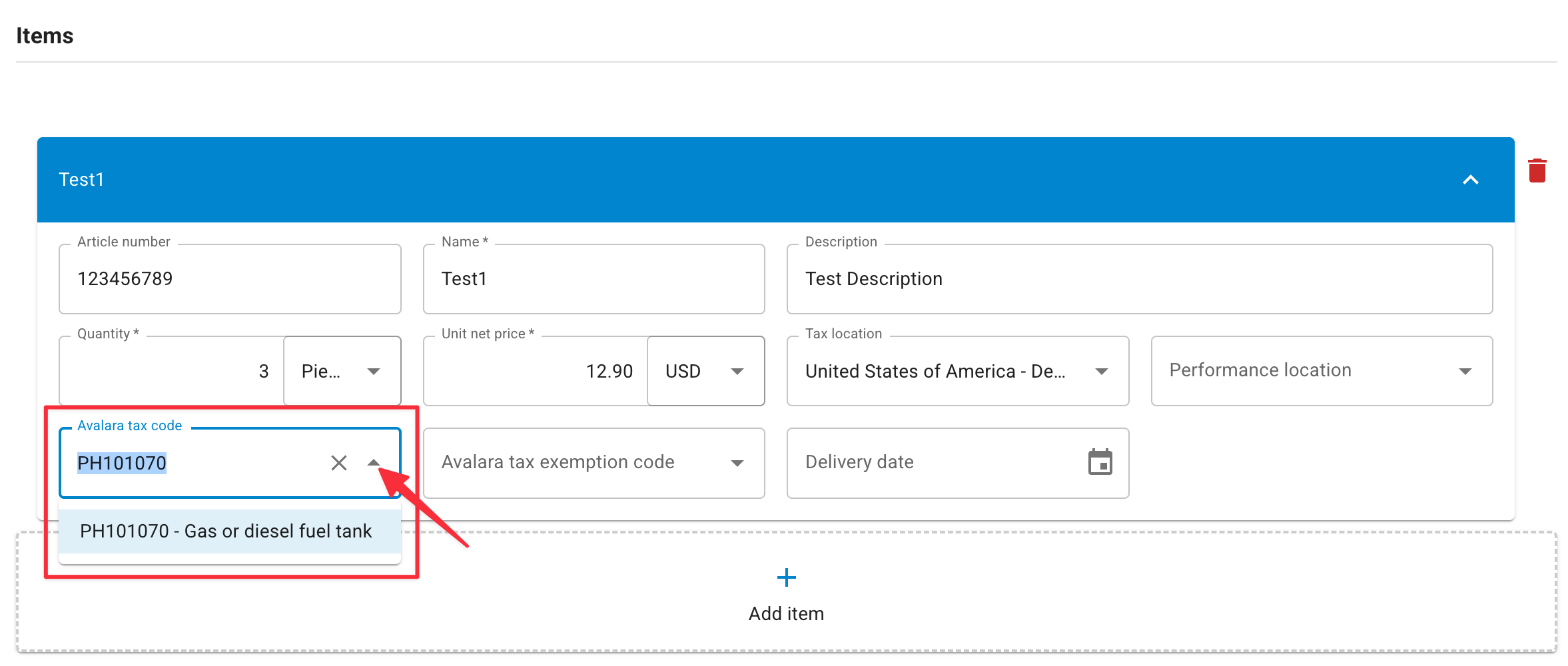
Avalara uses tax codes to identify products that have specific tax rates depending on where they are taxed.
Enter a tax code when creating line items. You can search for the correct TaxCode via Dropdown.
To see a listing of all available AvaTax System tax codes, click here.
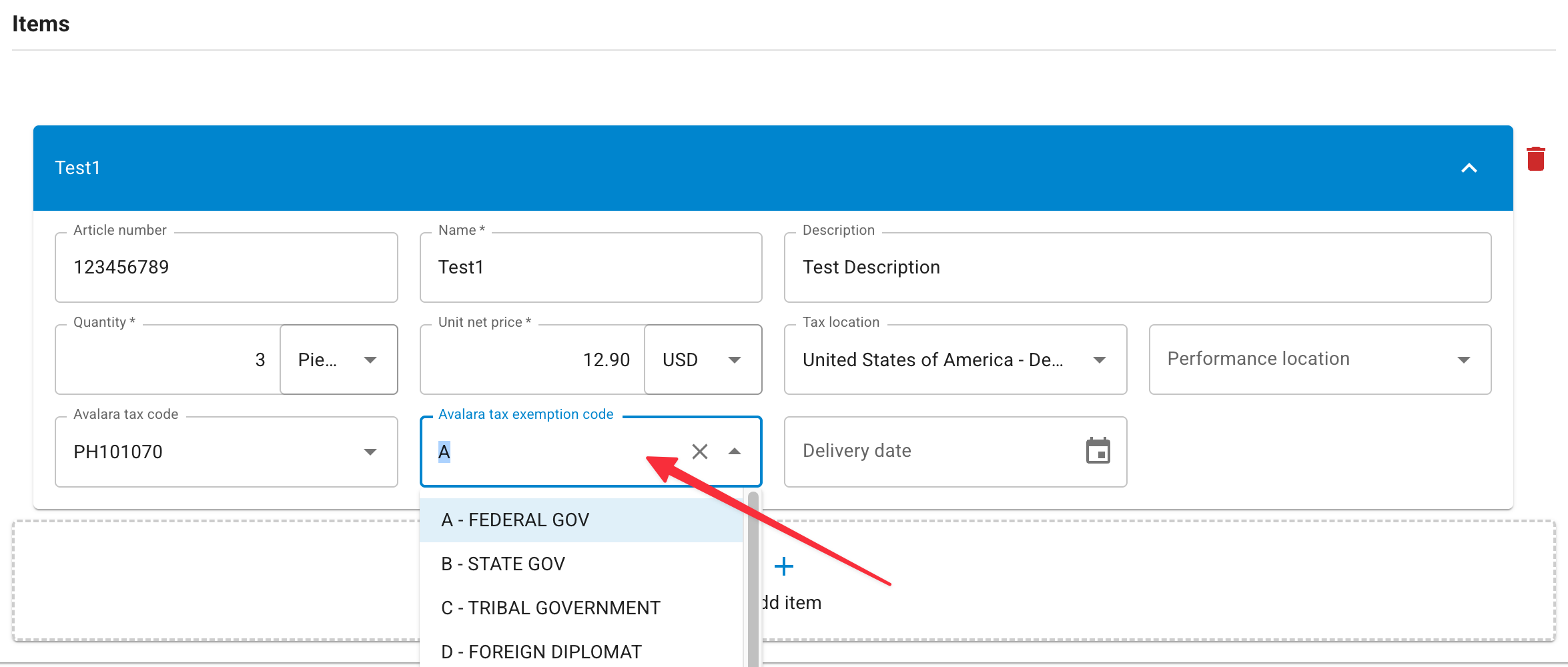
Assign an Avalara tax-exempt category to a line item
Entity use codes are used to identify reasons for exemption available in AvaTax. The letters correspond to the exempt reasons from the Streamlined Sales Tax Certificate of Exemption.
For example, applying entity use code E to a line item indicates that the line item purchase is exempt because it’s a purchase made by a charitable organization.
See the standard codes:
A - Federal government (United States)
B - State government (United States)
C - Tribe / Status Indian / Indian Band (both)
D - Foreign diplomat (both)
E - Charitable or benevolent org (both)
F - Religious or educational org (both)
G - Resale (both)
H - Commercial agricultural production (both)
I - Industrial production / manufacturer (both)
J - Direct pay permit (United States)
K - Direct mail (United States)
L - Other (both)
M - Not Used
N - Local government (United States)
O - Not Used
P - Commercial aquaculture (Canada)
Q - Commercial Fishery (Canada)
R - Non-resident (Canada)
Enter an Entity Use Code when creating line items.
AvaTax configuration in the webportal
The Avalara AvaTax page in the webportal (navigate to: Integration > Tax Providers > Avalara AvaTax) is organized in three sections:
AvaTax Account
Holds the connection to your Avalara account: your Account ID is displayed here, and this is where you enter the Account ID and License Key described above.
AvaTax Configuration
Shows the operational settings for the connected account: Company Name, AvaTax Tax Calculation, Client Side Logging, Document Recording, and Sandbox Mode — see the descriptions above for what each setting does. Using Sandbox Mode ensures that taxes are calculated and documents are stored in the Avalara AvaTax test environment, so you can verify your setup before it affects production data.
Avalara AvaTax Client Logging
Lists the recorded API communication with Avalara: each entry shows the creation date, ident, reference ident, method, and reference code. The Method column shows which Avalara API operation was logged — for example createTransaction, commitTransaction, or changeTransactionCode — so when troubleshooting, you can quickly narrow down which step of a transaction failed and open the matching log entry for its full request and response.
Note: Entries appear in the client logging table only while Client Side Logging is enabled in the AvaTax Configuration section.
Updated 3 months ago