
Billing Run
The billing run is the main process for turning due billable items into billing documents in the instellix platform. Learn how scheduling and the processing date work.
Billing run overview
First of all, it is important to understand what the process of a billing run involves. The basis for that is the collection of all billable items due. These are the units that go on the document as invoice items.
Initially, all billable items due will be retrieved and compiled by the instellix system.
In the next step, the billable items are processed into billing documents together with customer and contract data, invoice date, and invoice number. Grouping and splitting follow the configuration of the billing group.
The billing run creates the structured billing documents in the platform. How those documents look as PDFs, which language they use, and how they are delivered is handled afterwards in Document Provisioning — starting with File Creation.
Once the billing run is complete, the new documents appear in the document overviews (see Manage Documents).
How billing runs are scheduled
The instellix billing system monitors up-to-the-minute whether there are billable items that need to be billed and settles them in billing runs.
The decisive factor that determines whether a billable item is billed or not is the so-called processing date, which is stored individually in each billable item.
Depending on the billing group settings, the billable items due are billed in one or more documents according to the splitting configuration.
In addition, a single document can carry only a limited number of items — the limit is configurable up to 1,000 items per document. If more billable items are due than fit on one document, instellix automatically splits the billing into multiple documents, so no billable item is left unbilled.
The processing date of a billable item
Factors that determine the processing date of a billable item:
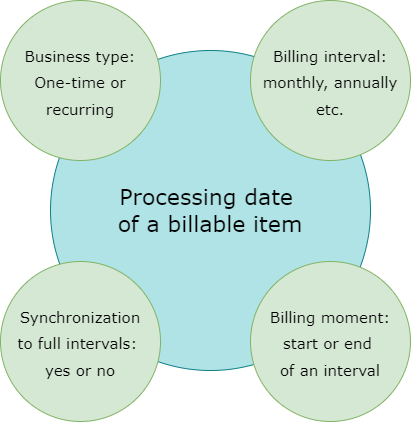
Factors "Type of business" and "Intervals"
The processing date is determined differently for one-time and recurring business types.
One-time purchases
In the case of one-time purchases (orders), a distinction must be made between the immediate and on-demand billing strategies. In the case of immediate billing, the processing date corresponds to the current time of the purchase. For an on demand strategy, billing occurs when an external trigger is activated, e.g. automatically via the API or via the "Process Billable Items" button in the instellix Webportal.
Recurring business
For recurring business models, the processing date is based on the billing intervals defined in the plan and therefore also in the associated contract. The intervals are to be defined for each plan. Typical billing intervals are weekly, monthly, quarterly, semi-annually or annually. In addition, there is the factor of whether billing should occur at the beginning or end of an interval.
Example 1:12-month contract with monthly (interval) billing at the end of the month (billing moment): Contract start date is 01 April 2022 with processing date for the first billing on 30 April 2022 for the April 2022 performance period.
Example 2:12-month contract with monthly (interval) billing at the beginning of the month (billing moment): contract start date is 01 April 2022 with processing date for the first billing on 01 April 2022 for the April 2022 performance period.
Factor "Synchronization"
The synchronization feature
The instellix platform also provides the "Synchronization" feature. This function allows you to specify whether the billing of a contract that starts in the middle of the interval should be synchronized with the second billing to the full interval.
Example 1: Synchronization to the interval "month" with factor "at the interval end"
A 12-month contract starts on 13 April 2022 and is to be billed at the end of each month, the first processing date will be 30 April 2022 for the period 13-30 April 2022. The second processing date will be 31 May 2022 for the period 01-31 May 2022, the third processing date will be 30 June 2022 for the whole month of June and so on.
Example 2: Synchronization to the interval "month" with factor "at the interval start"
The first processing date will be 13 April 2022 for the period 13-30 April 2022. The second processing date will be 01 May 2022 for the period 01-31 May 2022. The third processing date will be 01 June 2022 for the whole month of June and so on.
Managing billable items
Individual billable items can be reviewed in the webportal, and failed items can be retried from the related contract or order. Some failed items may need manual work before they can be retried.
See Billable Items for the full guide, and the API reference for query, correct, cancel, and retry operations.
Run a billing run for a single customer
If you want to process billable items for a customer, navigate to: Billing > Customers > Customer Overview
Select the customer entry you want to add the order to. Click the "Details" button at the end of the line to open the customer details page.
Click "Process billable items" in the top right corner of the page to initiate a debtor-specific billing run for the selected customer. A pop-up window opens, where you define the “Processing date” of the billing run. All billable items that are due before the selected processing date, will be processed in this billing run. Click “Create” to start the billing run. The new documents will be listed in the billing data section “Documents”. If you want to cancel the creation process instead of starting, click “Discard” and the pop-up window will close.
Deactivate billing for a single customer
Billing can be switched on or off for each individual customer — both in the Webportal and via the API. While billing is deactivated for a customer, billing runs do not process that customer's billable items; this is useful, for example, when data needs to be corrected before the next document is created. As soon as billing is switched on again, the customer's due billable items are picked up by the billing runs as usual.
Updated about 2 months ago